What You'll Learn
- Explain how V2 evaluates BUY, SELL, WAITING, and NO TRADE outcomes.
- Connect supported broker accounts and configure account-level sizing.
- Monitor connection health, execution status, risk protection, and audit history.
Elev8+ AutoTrader V2 • Direct Broker Automation
Elev8+ AutoTrader V2: Selective MNQ/NQ Automation Without TradingView Webhooks
Elev8+ AutoTrader V2 brings strategy evaluation, broker connectivity, account controls, execution status, and performance auditing into one dashboard. There is no customer-created TradingView alert or third-party webhook route to maintain. You connect a supported broker securely, choose the accounts you want enabled, define contract and quantity settings, and allow the Elev8+ platform to route only qualified V2 decisions to those accounts.
What Changed in V2
Old workflow: TradingView alert → webhook service → broker.
V2 workflow: Elev8+ strategy engine → validation → secure broker connection → enabled account.
Old setup: external subscriptions, alert configuration, and webhook maintenance.
V2 setup: connect, select eligible accounts, choose MNQ/NQ and quantity, verify settings, then enable AutoTrader.
Educational content only. Futures trading involves substantial risk and is not suitable for every trader. Past, backtested, or modeled performance does not guarantee future results. Automated execution can be affected by broker availability, connectivity, slippage, exchange conditions, account restrictions, rejected orders, and configuration choices. You remain responsible for sizing, account monitoring, verifying that automation is permitted, and understanding how losses affect your own broker or prop-firm account.
Simpler Setup
- No TradingView plan required for AutoTrader execution
- No webhook URL or third-party routing service
- No chart alert to create, renew, or troubleshoot
More Selective V2 Logic
- Evaluates each eligible session without requiring a trade
- Uses directional, structural, liquidity, and confirmation filters
- Can wait for additional confirmation or return NO TRADE
One Control Center
- Broker and account connection health
- Account-level contract and quantity controls
- Decision, execution, P&L, and audit visibility
How Elev8+ AutoTrader V2 Works
V2 is designed to evaluate every eligible session without forcing a trade every day. The strategy can produce an immediate BUY, SELL, or NO TRADE decision when the evidence is strong enough. When conditions are incomplete, V2 can remain in a waiting state and require additional confirmation—such as a qualified reclaim—before the session cutoff. If that confirmation never develops, the session remains a no-trade day.
1) V2 Evaluates the Session
- The system reviews the scheduled market window using the current V2 decision model.
- Directional bias, liquidity context, structure, and confirmation filters can reject conflicting conditions.
- A session can finish as NO TRADE when the model never receives enough evidence to justify execution.
2) Elev8+ Sends the Qualified Decision
- Execution is managed by the Elev8+ platform rather than a customer-created TradingView alert.
- The qualified decision is validated and routed only to connected, eligible, and enabled accounts.
- The dashboard records decision, routing, order, and execution status so the automation can be audited afterward.
3) The Broker Executes the Order
- Your supported broker connection is linked through its secure authorization flow.
- You select which discovered accounts may receive AutoTrader executions.
- Each enabled account uses its saved MNQ/NQ contract and quantity settings.
4) Adaptive Risk Protection Is Applied
- V2 uses dynamic stop-loss logic with defined safety limits rather than one fixed stop distance for every session.
- Risk protection is tied to the qualified setup and execution context, with broker-side safeguards where supported.
- Position sizing remains account-specific and under your control; automation does not decide how much account risk you should tolerate.
The V2 Automation Path
V2 market evaluation → qualified decision → Elev8+ validation → enabled broker account → order → risk protection → audit record. This shorter path removes the customer-managed TradingView/webhook layer that existed in the original system while keeping the decision and execution trail visible in one place.
Secure Broker Connection and Account Controls
The AutoTrader dashboard guides you through the supported broker connection process. Where OAuth is available, authorization occurs through the broker's own sign-in and permission screen. That keeps broker authentication separate from TradingView alerts and third-party webhook routing while allowing Elev8+ to use the authorization granted for the approved connection.
Watch: Connect Tradovate to AutoTrader V2
Follow the complete Tradovate authorization, account selection, sizing, and AutoTrader activation process from the Elev8+ dashboard.
Tradovate authorization is completed through Tradovate's secure OAuth screen. Elev8+ receives authorization tokens for the approved connection; your Tradovate password is not entered into the Elev8+ dashboard or stored in a TradingView alert.
Connection Setup
- 1. Open the AutoTrader dashboard.
- 2. Choose a supported broker connection.
- 3. Complete the broker authorization flow.
- 4. Return to Elev8+ and verify that the connection is healthy.
Account Setup
- 1. Review the accounts returned by the broker.
- 2. Enable AutoTrader only on the accounts you want to use.
- 3. Select MNQ or NQ and set account-level quantity.
- 4. Monitor connection, decision, orders, and P&L from the dashboard.
Supported brokers, connection methods, and account eligibility can change. Availability also depends on the broker, account environment, and any automation restrictions imposed by a prop firm or account provider.
What Members Can See in the V2 Dashboard
Daily Decision
OFF outside eligible hours, WAITING while V2 evaluates incomplete conditions, then BUY, SELL, or NO TRADE when the session resolves.
Broker Health
Connection status, enabled accounts, contract settings, quantity, recent orders, and actionable reconnect notices.
Performance Audit
Daily decisions, no-trade sessions, trade history, modeled results, and calendar views built from the V2 audit record.
Historical Model Performance and V2 Audit Transparency
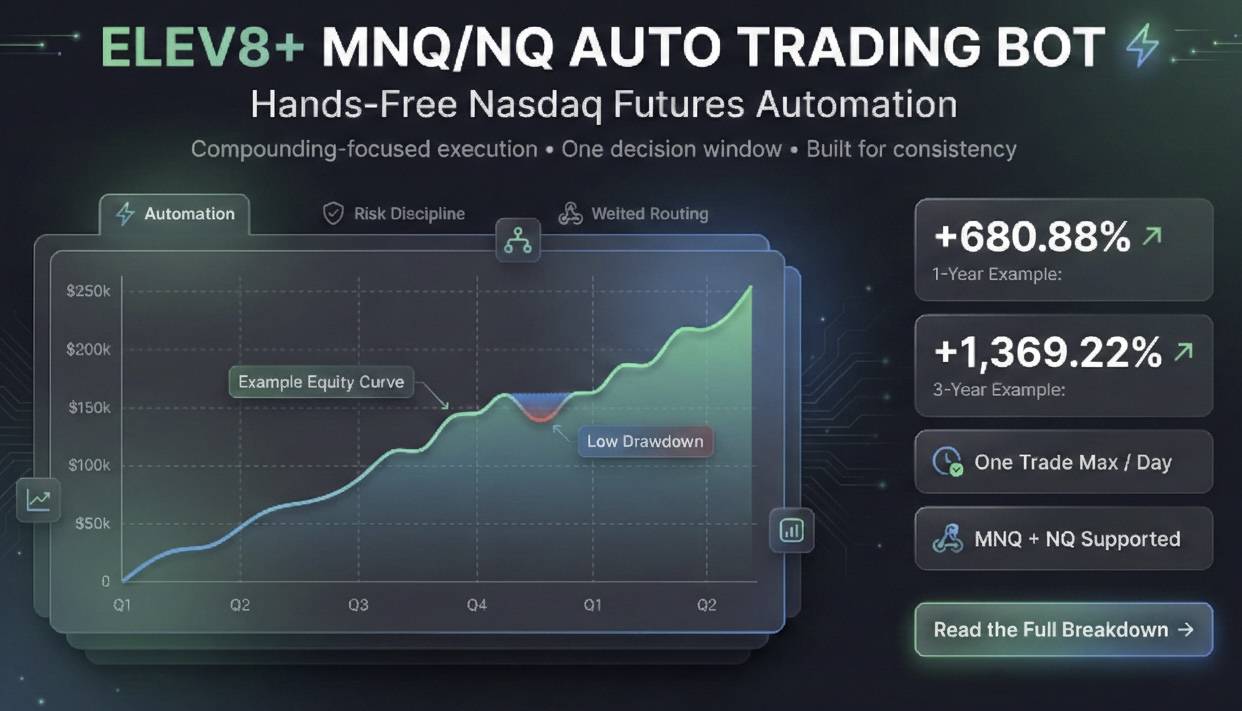
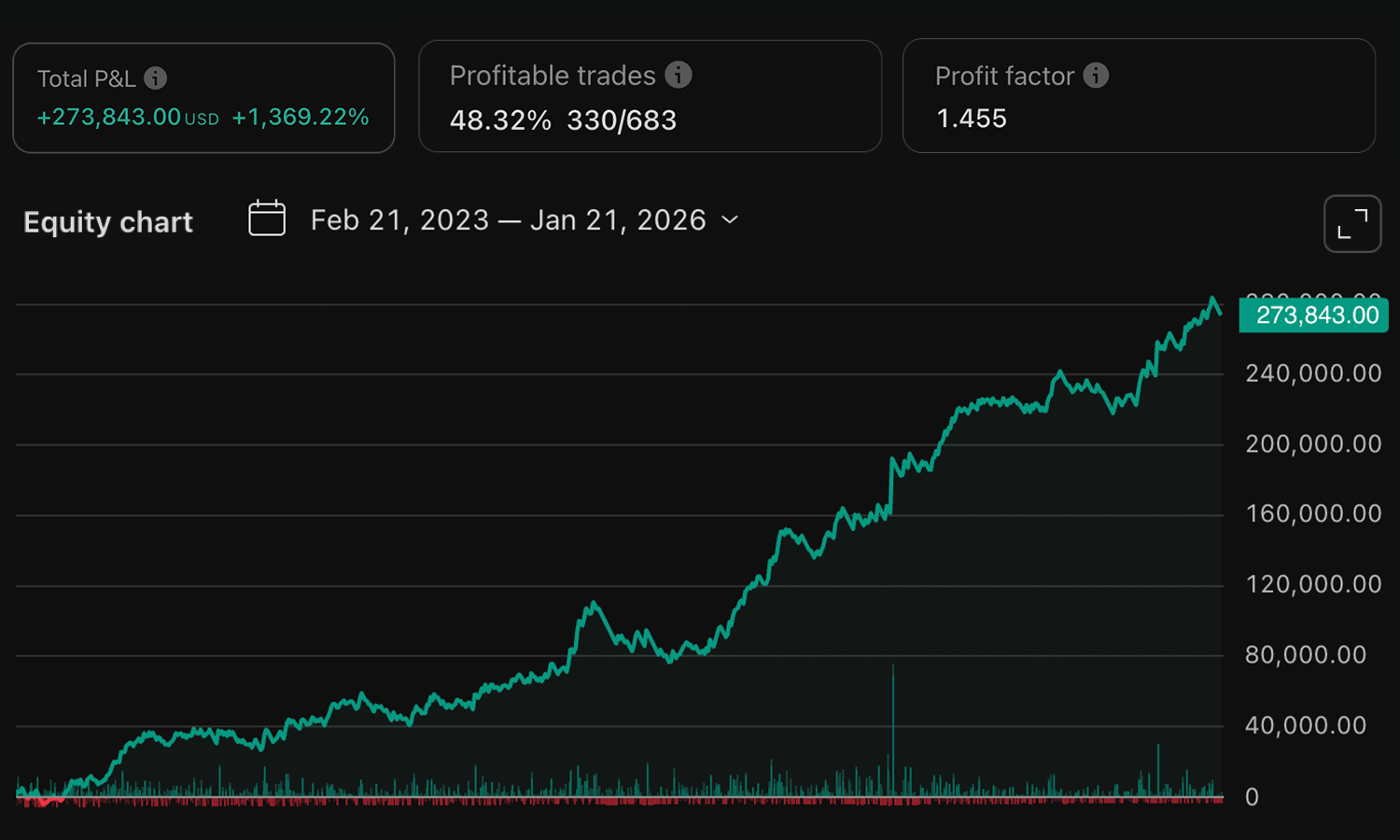
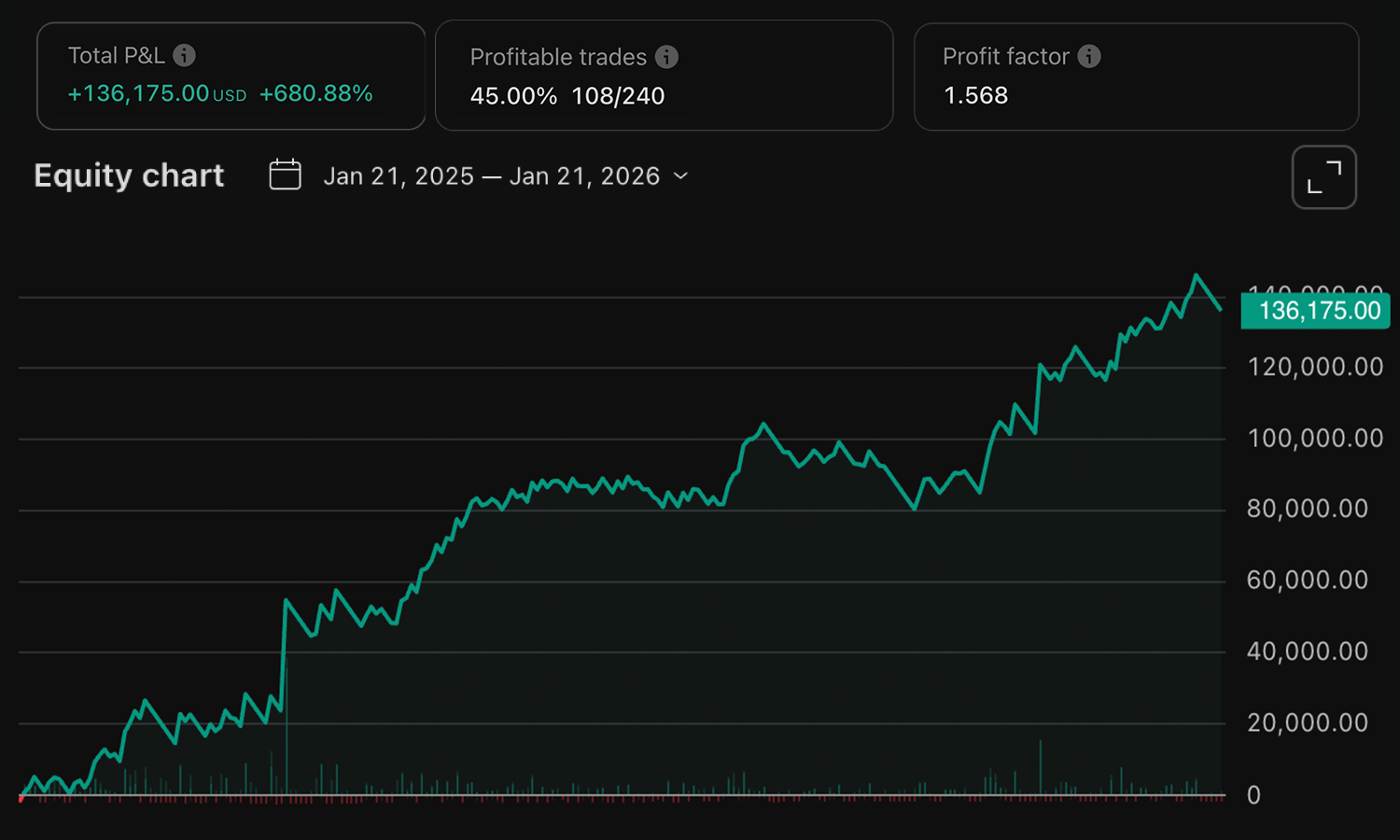
The examples below illustrate historical modeled strategy performance at fixed size. Modeled results are useful for studying how the rules behaved over a historical sample, but they are not the same as live fills and are not a promise of future returns. For current V2 activity, use the Elev8+ performance calendar and audit history, and distinguish modeled results from actual broker executions whenever reviewing performance.
Three-Year Historical Model View
One-Year Historical Model View
Risk, Sizing, and Account Compatibility
Automation can make execution more systematic; it does not remove market, execution, or account risk. Start with conservative size, maintain adequate drawdown capacity, and enable only accounts that permit automated trading. Compatibility depends on the supported broker connection, account environment, and each broker's or prop firm's current automation rules.
Account-Level Sizing
- Use MNQ when a smaller contract better matches your account and risk tolerance.
- Use NQ only when the larger dollar movement is appropriate for the account.
- Set quantity independently for each enabled account.
- Increase size only when the account can support the additional dollar risk and drawdown exposure.
Before Enabling AutoTrader
- Confirm the broker connection shows healthy.
- Confirm the intended account—not merely the parent connection—is enabled.
- Verify contract, quantity, environment, and account rules.
- Monitor the first enabled session closely and review the resulting decision and order history afterward.
Frequently Asked Questions
Do I need TradingView for AutoTrader V2?
No. V2 execution does not require you to purchase a TradingView plan, create an alert, or maintain a webhook.
Do I need PickMyTrade or TradeSyncer?
No. The V2 AutoTrader connects supported accounts through the Elev8+ dashboard and routes qualified decisions directly through the integrated broker connection.
Does the system trade every day?
No. It evaluates every eligible session and trades only when the V2 decision model reaches a qualified outcome. WAITING and NO TRADE are intentional states, not errors.
Is the stop loss always the same?
No. V2 uses dynamic stop-loss logic with safety limits. The applicable distance can vary with the qualified setup, entry context, and market conditions.
Can I use a prop-firm account?
Only when the account is available through a supported connection and the firm permits this form of automation. Always verify the firm's current rules.
Ready to Use Elev8+ AutoTrader V2?
Open the AutoTrader page to review access options. After activation, connect a supported broker from the dashboard, choose the accounts you want enabled, set contract and quantity, verify account rules and connection health, and review the dashboard before the next eligible session. Setup support is available if you want help checking the configuration.
Reminder: Futures trading involves leverage and can result in significant losses. Past and modeled performance are not indicative of future results.
Quick Checklist
- I can explain how V2 evaluates BUY, SELL, WAITING, and NO TRADE outcomes.
- I can connect supported broker accounts and configure account-level sizing.
- I can monitor connection health, execution status, risk protection, and audit history.
When Should Automation Remain Off?
Keep execution disabled until the broker connection is healthy, the intended accounts are enabled, contract and quantity settings are verified, and the account rules permit automation.
Common Mistakes
- Enabling execution before checking connection health and account sizing.
- Treating WAITING or NO TRADE as a system failure.
Next Recommended Lesson
Return to the Education Hub and review your completed curriculum →